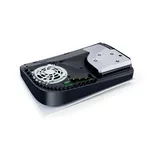

A PS5 system update and a system-software reinstallation are different operations. That distinction matters most when an update fails and you begin looking for a recovery option. Start by recording the error and using the least disruptive route that matches it. Do not jump directly to a reset because it appears next to update instructions on a support page.
Use the normal update route first
Sony's official update guide directs you to Settings, System, System Software, then System Software Update and Settings. Choose Update System Software when an update is available. Let installation complete without turning off the console.
Before starting, finish the current game and allow it to save. Give the update a period when nobody needs the console immediately. An installation is a poor time to discover that the television must be disconnected or that someone intends to switch off the power strip.
Handle a failed download as a download problem
Open Downloads/Uploads from the control center, select the failed system update, view its error information, and use Try Again. If the same problem returns, record the exact error and when it occurs. Sony's guide provides the next supported update route.
Distinguish a transfer that never completes from an installation that fails after the file is present. Those are different observations. Keep a short record of what you tried and the result, especially before contacting support. It prevents you from repeating the same action while forgetting whether it changed anything.
Understand the USB update option
Sony's manual route uses a FAT32 or exFAT USB drive with the update file at PS5/UPDATE/PS5UPDATE.PUP. Download the update file from Sony's page, then follow its Safe Mode instructions for Update System Software and Update from USB Storage Device. Folder and file names must match, including uppercase letters.
Before preparing a USB drive, check whether it contains files you need. Formatting a drive to change its filesystem removes its existing contents, so choose a suitable spare drive or preserve those files first. Do not assume a drive already used for extended game storage is ready for this separate purpose.
If the console cannot recognize the file, inspect the folder nesting and filename before downloading it repeatedly. A browser may add a suffix to a duplicate download. Keep the official instructions open so that you can compare the intended layout directly.
Do not confuse reinstallation with updating
Reinstalling PS5 system software deletes the console's data. The reinstallation download and reset option are not interchangeable with an ordinary update. Pause before choosing them if your purpose was simply to install the latest system version.
Protect progress before any operation that could erase it. Our save-backup guide explains the available approaches and why installed games and saved data require separate attention. If you cannot establish which copy contains your latest progress, resolve that uncertainty before overwriting or resetting anything.
Make future updates easier to manage
Sony's automatic-update instructions explain the settings for downloading and installing updates and the relevant rest-mode options. Configure these while you can check the console's behavior, rather than assuming every update completes automatically under every power setting.
After a successful update, verify the installed version in the system information and reopen the game you intended to play. Keep the error note only if a problem remains. Use official release information to check new features; an old post's file size or version number is not a dependable description of the update currently offered to your console.
Sources
Official documentation and publisher information checked on 26 October 2026. Availability and features can vary by country, game, and system version.