Before replacing a PS5, identify the save that contains the progress you want to keep. A downloaded game is replaceable; a recent save that exists on only one console may not be. The safest workflow separates preparation, transfer, and verification instead of treating a factory reset as the first step.
Choose the method that fits the situation
| Method | Useful when | Main consideration |
|---|---|---|
| PS Plus cloud storage | You need the same account's saves on another console | Check the uploaded version and sync status |
| Console-to-console transfer | Both consoles are available | Prepare both systems and allow the transfer to finish |
| Full PS5 USB backup | You want a local console backup | Restoring it erases the destination console's current data |
| Individual PS4 saves on USB | You need a separate copy of PS4 saved data | This individual-file option does not apply to PS5 saves |
Sony's storage guide distinguishes PS4 and PS5 saves from game installations. A drive formatted as USB extended storage serves a different purpose from a regular USB backup drive. Our M.2 and USB comparison covers the game-installation side.
Prepare a small verification record
For each important game, note the account, PS4 or PS5 edition, latest meaningful checkpoint, and visible save date. A screenshot of the load screen can make later comparisons easier. Finish saving and close the game before starting a transfer.
Check that you can sign in on the replacement console without relying on a device you are about to discard. Resolve any uncertainty with our passkey and recovery guide. Also synchronize trophies: on PS5, open your profile's Trophies screen, press options, and choose the sync command. Sony documents this separately in its trophy guide.
Use cloud saves with a deliberate version check
PlayStation Plus is required for Sony's cloud storage. PS5 saves can automatically synchronize, while PS4 saves can automatically upload and require a manual download to another PS5. In Saved Data and Game/App Settings, choose the relevant platform. For PS5, inspect Sync Saved Data and its status before leaving the source console. Sony's cloud-storage instructions cover automatic sync, uploads, and downloads.
If you need a manual copy, use the upload control on the source and the download control on the destination. Compare the displayed information before confirming any replacement. A recent timestamp is useful evidence, but your recorded checkpoint tells you whether it is the progress you intended to keep.
If two versions disagree, pause. Avoid repeatedly launching the game on both consoles while deciding which save is correct. Do not delete either copy merely to remove the conflict message. Our PS Plus guide explains where cloud storage fits in the subscription plans.
Transfer directly when both consoles are available
Update the systems, use the same account, and connect both consoles to the same network. On the destination PS5, open Settings, System, System Software, then Data Transfer. Follow the selection screens and check transfer progress in Downloads/Uploads. A restart does not necessarily mean every background transfer has finished. Do not turn either console off or change network settings during the operation. See Sony's console-transfer guide.
Transfer is not a general-purpose merge tool: Sony notes that game or saved data already present on the destination does not transfer. Inspect existing progress there before starting. For a move from PS4, use our PS4-to-PS5 guide to distinguish moving a save from converting it for a native PS5 edition.
Create a full USB backup
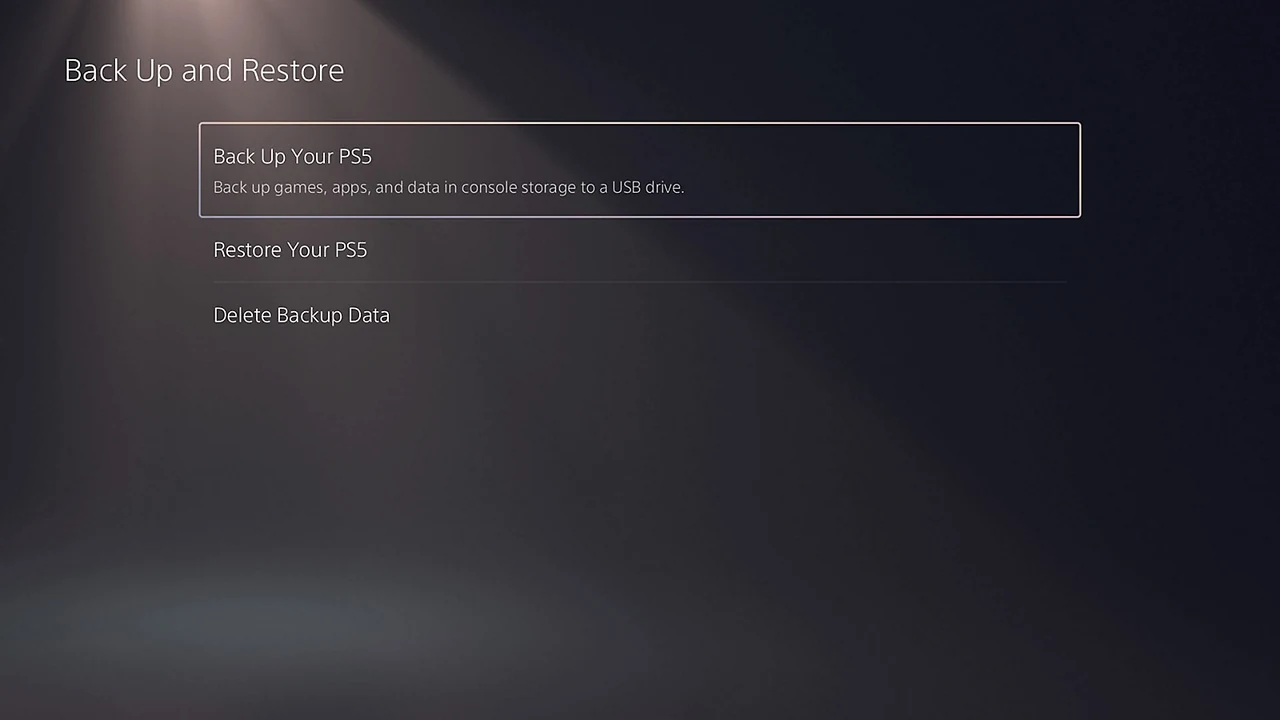
Use a compatible FAT32 or exFAT USB drive, not a drive currently formatted as extended game storage. In Settings, follow System, System Software, Back Up and Restore, then Back Up Your PS5. Select the required data, inspect the size, and let the backup finish without interruption. Sony's backup guide explains the choices. Trophies and games installed on M.2 or extended USB storage are excluded.
Label the backup with the console, account context, and date. Keep it available until you have verified the replacement. A backup file's existence is a useful checkpoint, but it does not demonstrate that you selected every item you intended.
Restore only after protecting the destination
Restoring a full PS5 backup erases the data currently saved on the destination console. Preserve any newer or unique progress there first. The destination system software must be the same version or newer than the backup's. Then use Restore Your PS5 within Back Up and Restore, selecting the intended backup. Follow Sony's restore instructions; Console Sharing and Offline Play must be enabled again afterward where needed.
Before disposing of the old console or backup, open each important game with the correct account and edition. Check the load screen against your notes, confirm the expected checkpoint, and then make a fresh save. Keep the original copy until those checks are complete. Missing progress is a reason to investigate the source and version, not an instruction to overwrite more data.
Sources
Official documentation and publisher information checked on 26 October 2026. Availability and features can vary by country, game, and system version.