
A strong sign-in method is only part of account security. You also need control of the email address behind the account, a way to authenticate after losing a device, and sensible access on shared consoles. Treat those as three related jobs rather than expecting one setting to solve everything.
Start with the account you need to recover
Confirm your sign-in email and make sure you can still open that inbox. Store your account details and purchase records somewhere you control. Keep the recovery process practical: a note saying “use my phone” is not helpful if that phone is the missing item.
Use a unique password for the email account and review its recovery options. Sony's security guidance emphasizes email protection, unique passwords, and avoiding shared credentials. Apply the same care to the account that synchronizes your passkeys. Check that you understand how to regain access to it before depending on it for PlayStation sign-in.
Set up a passkey and test it
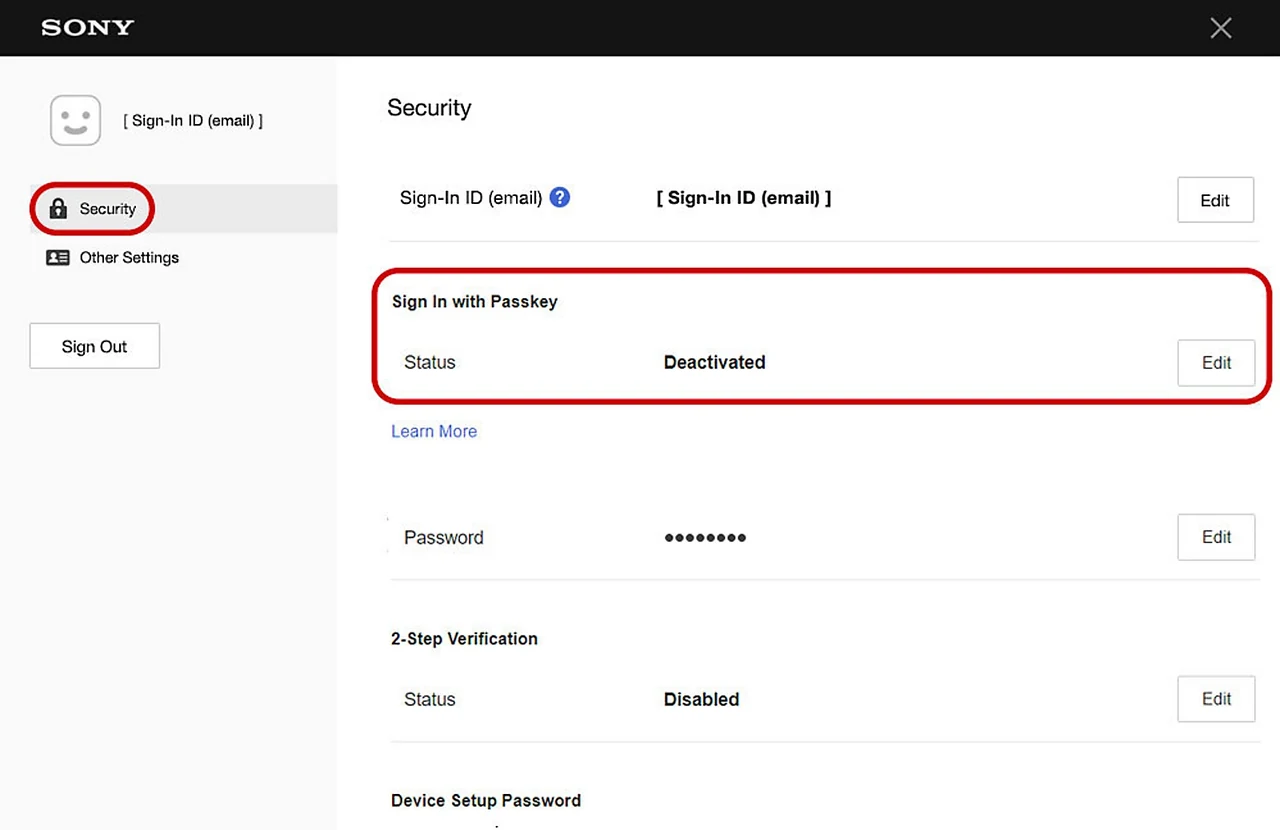
A passkey replaces the PlayStation password with authentication through a compatible device or password manager. In Account Management, open Security, enable Sign in with Passkey, and follow Create a Passkey. Sony also offers setup from the PS5 account-security screen using a QR code. Use the code shown by the official sign-in flow you initiated, not one sent by a stranger. See Sony's passkey setup instructions.
Before retiring your old sign-in device, test the new method in a separate browser session or on another supported device. Keep the existing working session available while checking. This turns a future emergency into a controlled test: you know which device prompts for approval and which account provides the credential.
Account Management also lets you manage existing passkeys and add another. Synced passkeys can be available on devices using the same compatible manager. Verify that availability yourself; do not assume every device you own is already included.
Passkey recovery and 2SV codes are different
| Method | Preparation | If the device is lost |
|---|---|---|
| Passkey | Verify another available passkey or synchronized device | Use that device; otherwise follow account recovery |
| Password plus 2-step verification | Keep the generated backup codes safely accessible | Use an unused backup code or contact support if unavailable |
For a passkey account, Sony says another device with the same verification method can let you sign in and register a replacement passkey. If no usable device remains, follow the official account-recovery route. An unfamiliar change to your sign-in details also belongs with account recovery, not game troubleshooting.
For password-based 2-step verification, Sony provides ten single-use backup codes. Its 2SV recovery guide explains how to enter one when the normal verification method is unavailable. Those codes are for the 2SV flow; they are not a backup copy of a passkey. Keep them outside the single device they are intended to replace, and do not send them to anyone offering help.
Secure the console as well as online sign-in
A console login passcode limits local access to your user profile. On PS5, go through Users and Accounts to Login Settings and set a PS5 login passcode. Sony distinguishes this from the separate console-restriction passcode used for parental controls in its local-access guide.
Review stored payment methods and household access. Sony notes that Require Password at Checkout is incompatible with passkey-enabled accounts, so do not assume both protections operate together. Read the applicable security settings before relying on a checkout prompt.
If you are handing over a console, distinguish signing out from deactivating its shared-purchase access and erasing your local data. Sony's deactivation guide says deactivation itself does not delete data. Back up progress using our save-transfer guide before any separate reset.
Recognize requests that should stop the conversation
An unexpected message promising currency, beta access, or help with an alleged report should not become a sign-in session. Open PlayStation Support yourself rather than following the sender's login link. Sony specifically warns about direct-message and QR-code scams; possession of a familiar logo does not establish who sent the request.
If access changes unexpectedly, preserve relevant emails and transaction details, secure the linked email, and use official recovery. Once access is restored, check the sign-in methods and console arrangement again. For a game that remains unavailable afterward, follow the locked-game guide; account recovery and license restoration address different failures.
Sources
Official documentation and publisher information checked on 26 October 2026. Availability and features can vary by country, game, and system version.