A game can remain installed after the permission to play it changes. That makes the padlock confusing: the files are visibly there, but the console still needs a valid entitlement. Begin by identifying how you obtained the game. Reinstalling everything before answering that question can waste time and leave the original problem unresolved.
1. Identify the account and the kind of access
Write down the exact game, edition, and PS4 or PS5 version. Then decide which description fits: a digital purchase, a physical disc, a claimed monthly game, a catalog download, or a purchase shared by another household member. This small inventory prevents you from troubleshooting the wrong product.
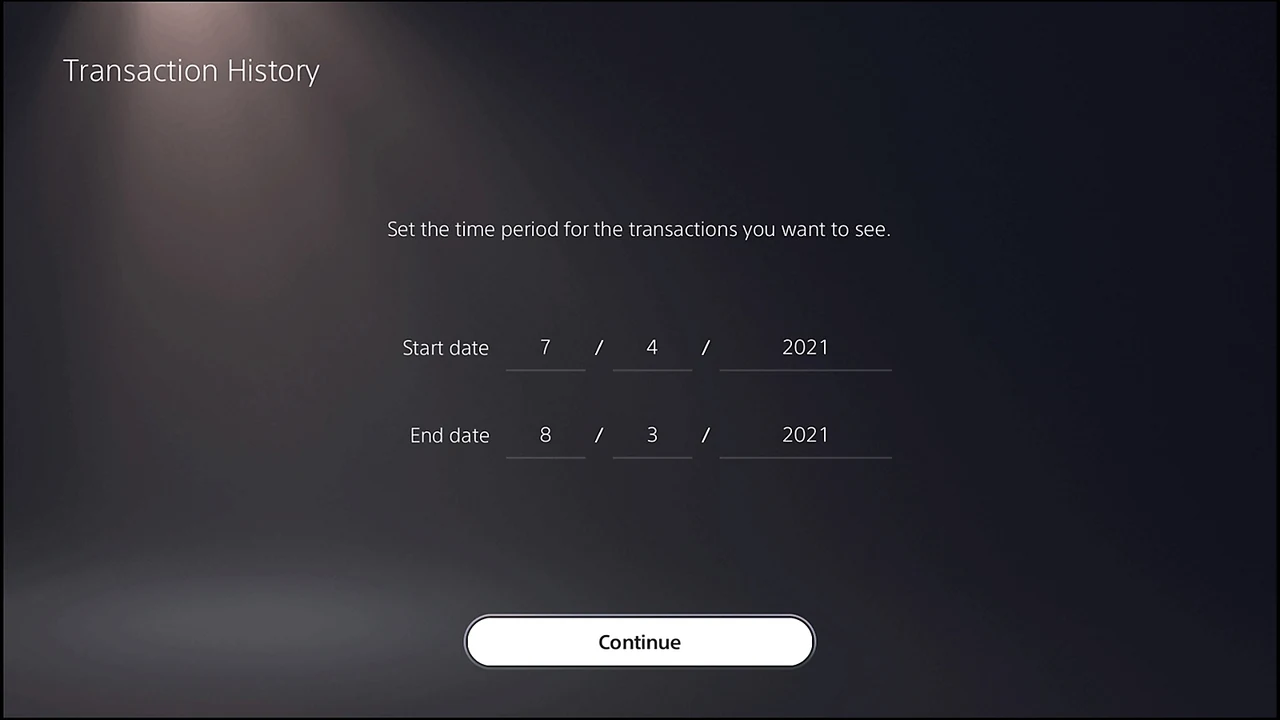
For a digital purchase, check the purchasing account's transaction history. On PS5, start in Settings, open Users and Accounts, then Account, Payment and Subscriptions, and Transaction History. Expand the date range for an older purchase and inspect the transaction details. A receipt is more useful evidence than a game tile. Sony explains these checks in its transaction-history guide.
- If another household member bought it, ask them to verify the purchase on their own account.
- If you originally played from a disc, check that you are trying to launch the corresponding installed version with the required disc available.
- If the base game launches but an expansion does not, use our DLC compatibility checklist; that is a narrower problem.
2. Check whether subscription access has ended
Canceling renewal and reaching the subscription's end date are different events. Sony says benefits continue through the period already purchased; once membership ends, access to monthly games and other subscription benefits ends. A game purchased at a PS Plus discount is different from a game received through the subscription. See Sony's cancellation explanation.
For a catalog game, verify both your current membership tier and whether the title remains available. Sony's locked-game troubleshooting explicitly calls for these checks. Renewing a plan cannot bring back a title that has left the relevant catalog. Our PS Plus plan comparison explains the distinction between monthly claims and catalog access.
3. Check the household console setting
If the purchasing account can play but another local account cannot, inspect Console Sharing and Offline Play on the purchasing account. It can be enabled on one PS5 at a time. In Settings, open Users and Accounts, then Other, and select Console Sharing and Offline Play. Enable it on the intended shared console. This shares eligible purchases and some subscription benefits; it does not transfer ownership. Follow Sony's sharing guide.
Consider whether someone recently replaced a console or changed that setting. Solve the household arrangement deliberately rather than repeatedly switching activation between machines. Never send another person your sign-in credentials to perform this check.
4. Restore the license
Once you have established that access should be valid, check PlayStation service status and install available system-software updates. If there is a service incident, wait for recovery before making further changes. These are part of Sony's official troubleshooting sequence.
- Sign in with the account that holds the entitlement.
- Open Settings, then Users and Accounts, then Other.
- Choose Restore Licenses and select the relevant licenses.
- Try opening the game again and record any error message.
There is also a per-game option: highlight the title, press the controller's options button, and choose Restore License where available. Sony states that this operation does not affect your data. It refreshes license information; it does not buy the game, extend a subscription, or create access you never held. See the license-restoration instructions.
5. Escalate with evidence, not deleted saves
If the padlock remains, collect the purchase date, transaction details, edition, account country, error code, and a screenshot. Note whether every game is affected or just one, and whether the purchasing account behaves differently from other users. This gives support a reproducible problem instead of an unexplained icon.
Do not erase saves, factory-reset the PS5, or repurchase the title simply to test a theory. A reset is a separate decision requiring a verified save-backup plan. If you discover unfamiliar purchases or sign-in changes, switch to account recovery and security before continuing game troubleshooting.
Sources
Official documentation and publisher information checked on 26 October 2026. Availability and features can vary by country, game, and system version.