The useful question is not simply how many terabytes you need. It is how much of your library you want ready to launch. A large archive of finished games has different requirements from a frequently used collection of PS5 releases. Start with the games you actually rotate between, then choose the storage location.
What each storage option can do
| Location | PS5 games | PS4 games | Best use |
|---|---|---|---|
| Built-in console storage | Store and play | Store and play | Your current core library |
| Compatible M.2 expansion | Store and play | Store and play | More games ready to launch |
| USB extended storage | Store; move back before playing | Store and play | PS4 library and a PS5 archive |
Sony's storage-location guide distinguishes game installations from saved progress. Neither an M.2 game drive nor USB extended storage is an individual-save backup destination. Moving a game there should not be your only preparation before replacing a console.
If you mainly play PS4 titles, our backward-compatibility guide helps you identify whether you are installing the PS4 edition or a separate PS5 upgrade. That distinction changes where the game can run.
Check the exact M.2 specification
Sony currently lists these requirements for the PS5 expansion slot:
- PCIe Gen4 x4 M.2 NVMe, Key M; M.2 SATA is unsupported.
- Capacity from 250 GB to 8 TB.
- Supported lengths: 2230, 2242, 2260, 2280, and 22110.
- With cooling fitted: no more than 25 mm wide or 11.25 mm thick, including at most 8.0 mm above the board and 2.45 mm below it.
- A sequential read speed of 5,500 MB/s or higher is recommended.
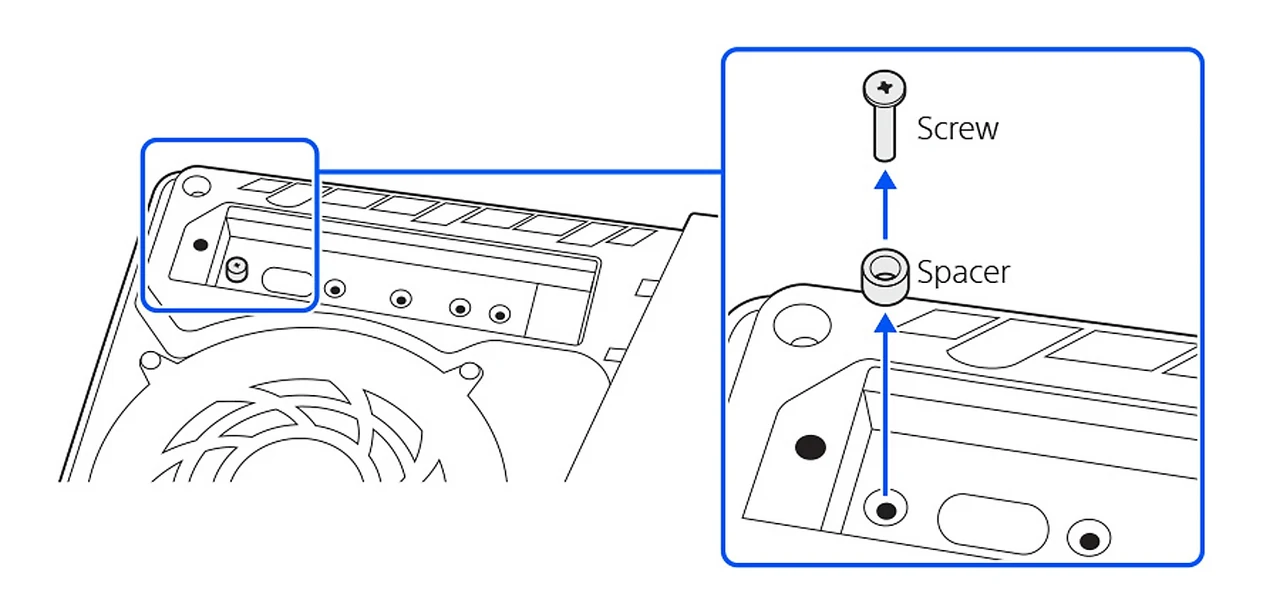
Effective heat dissipation is required. Check the complete drive-and-heatsink dimensions, not just the bare module. Sony does not guarantee every third-party drive or identical performance in every game. Its M.2 installation page includes the current specification and illustrated instructions for different console model groups. Update the console, shut it down and disconnect it before installation, and follow the correct model instructions. First-use formatting erases the drive's existing data; preserve anything needed before confirming.
A retail listing saying “gaming SSD” is insufficient. Compare its model number with the manufacturer's specification sheet. Check whether the displayed price includes the heatsink, whether that heatsink fits, and which capacity variant is actually selected. This avoids comparing a bare drive in one shop with a complete assembly in another.
When USB extended storage makes sense
USB extended storage must support SuperSpeed USB at 5 Gbps or faster and provide 250 GB–8 TB. Connect it directly, without a USB hub; only one extended-storage drive can be used at a time. Formatting it as extended storage erases existing contents. These conditions and the move/copy controls are documented in Sony's USB storage guide.
Connector shape does not tell you the port speed. The PS5's front-port arrangement varies by model, while the rear Type-A ports provide SuperSpeed connections in the listed model groups. Use the official USB-port diagram to identify a suitable port before concluding that a drive is incompatible.
For an occasional PS5 replay, moving an existing installation back may fit your routine better than keeping it permanently ready. For a game you launch every evening, that extra step becomes inconvenient. Estimate how often you will move titles, not just how many fit on the largest available drive.
Choose capacity from your own library
- Open Settings and inspect Storage. Record the space occupied by the games you currently play.
- Separate that list from finished games you want to retain for later.
- Leave room in your plan for updates and the next game you expect to install; do not budget every last gigabyte.
- Compare the total purchase cost, including cooling or a USB enclosure where applicable.
For an upcoming release such as GTA VI, use a publisher-confirmed installation requirement when one is available. A guessed download size is a poor basis for an expensive storage purchase.
Move games, then verify the result
Use the console's storage controls to move the selected installations. Start with one nonessential title, confirm its destination, and launch it from a supported location before moving the rest. Keep a short note of what is stored where if you use multiple drives.
When disconnecting USB extended storage, use its safe-removal control or wait until the console is fully off; Sony warns against improper disconnection. Keep a separate save-backup workflow for progress you cannot replace by downloading a game again.
Sources
Official documentation and publisher information checked on 26 October 2026. Availability and features can vary by country, game, and system version.