A missing expansion can look like a download problem even when the real issue is a mismatch between products. Start by identifying exactly what you have: the base game's edition and platform, the add-on you purchased, and the account used to buy it. Avoid buying a second copy while those details remain uncertain.
Sony says disc-based games must match the relevant account country or region to use PlayStation Store add-ons and in-game currency. Its add-on troubleshooting guide makes this requirement explicit. Being able to launch an imported base game does not establish compatibility with a local-store expansion.
Build a four-part compatibility check
| Item | What to record | Why it matters |
|---|---|---|
| Purchasing account | Registered country and the account that placed the order. | Connects the purchase to the correct regional store. |
| Base game | Disc or digital, complete edition name, and licensed territory where shown. | Identifies the release the add-on must support. |
| Installed version | PS4 or PS5, including any separately installed upgrade. | Prevents comparing an add-on with the wrong application. |
| Extra content | Exact product name, platform, order date, and any stated prerequisites. | Distinguishes an expansion from currency, a season pass, or an upgrade. |
Keep screenshots or notes together. If you eventually need support, this is far more informative than “the DLC does not work,” and it makes duplicate purchases easier to spot.
Check country and edition, not just language
In Account Management, open Your Information and the residential-address details to see the registered country or region. Sony says this setting cannot be changed after account creation. For a disc, inspect the licensing information on the packaging or ask the retailer to confirm it. See the account-country guide.
For example, a US account and a disc bought during a trip to the UK should trigger a compatibility check before a US-store DLC purchase. A retailer describing a copy as “European” is not enough information to conclude that it matches every European account. Ask which edition is supplied and which add-on listing it supports.
Treat these as verification examples, not automatic failure rules for every product. The publisher or retailer may be able to confirm an edition's supported territories. The evidence you need is a match for your actual combination, rather than a general claim that the game is region-free.
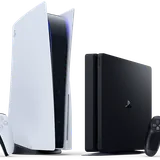
Also check whether you launched the PS4 or PS5 application. Where both are owned, Sony documents selecting a version through the game's options in its version and upgrade guide. Our PS4 migration article explains why a native upgrade and backward-compatible play are separate.
Before paying for extra content
- Open the add-on from the correct game's listing while signed in to the intended purchasing account.
- Read the required base game, platform, edition, and included content. Compare that description with your records.
- Check whether your existing edition or season pass already includes it.
- For an imported or used copy, obtain confirmation of the supplied edition and any included code's status.
- If the listing remains ambiguous, ask the publisher or store support before purchasing.
A download code has its own conditions. Sony requires a matching voucher/account region, permits one redemption, and does not transfer redeemed content between accounts. See its voucher restrictions. Our format comparison explains why a physical box and a reusable game disc should not be treated as interchangeable.
If you already bought the add-on
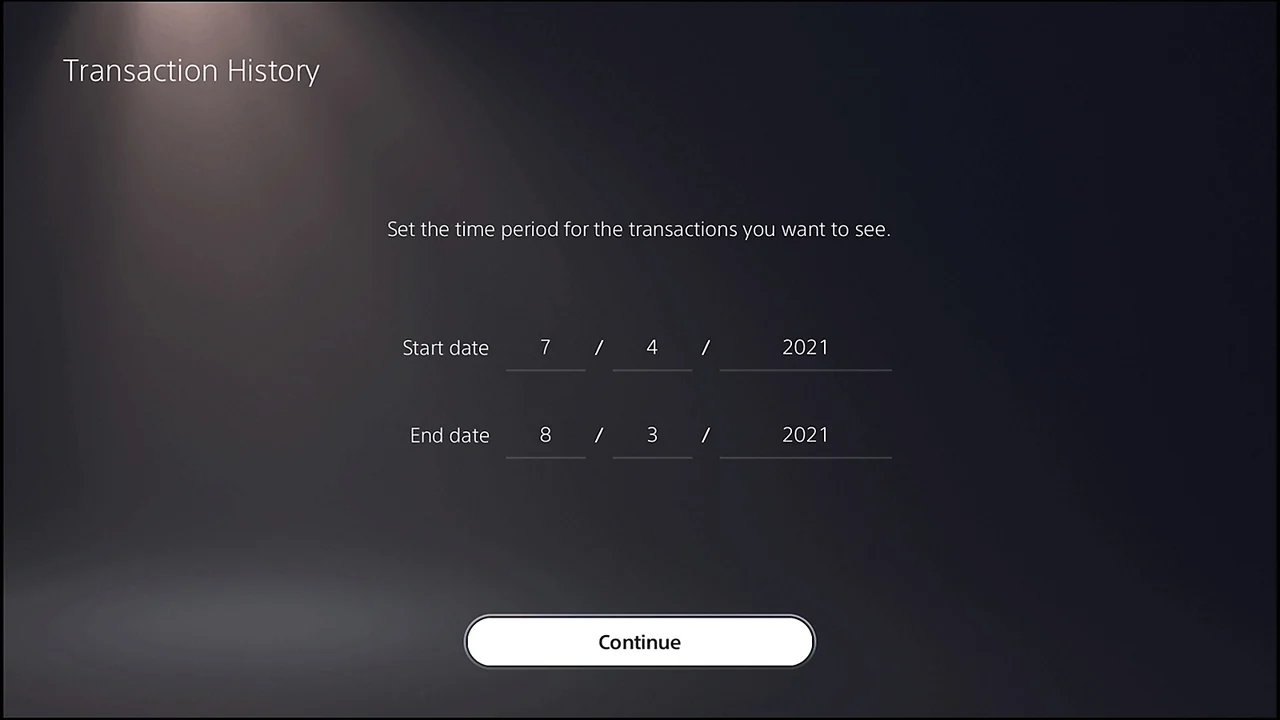
First confirm the order in Settings > Users and Accounts > Account > Payment and Subscriptions > Transaction History. For items that do not download, such as certain passes or currency, check Game and App Services as well. Sony explains both views in its purchase-history guide.
Then open the base game in Game Library > Your Collection and inspect its Add-Ons section. Download the relevant item if it requires installation, following Sony's download instructions. Do not expect every purchase to create a separate home-screen icon.
Check the publisher's activation instructions. Some content appears only after a particular checkpoint or in an in-game inventory. Currency should be checked on the account that bought it. Sony's troubleshooting page distinguishes these cases from ordinary downloads.
Restore access only after checking the entitlement
When the purchase and edition match but the content remains missing, restart the console and consider restoring licenses. Sony says this does not affect saved data; the menu is Settings > Users and Accounts > Other > Restore Licenses. See the official procedure and our access troubleshooting guide.
License restoration is an access check, not a conversion between incompatible products. If the problem persists, send support the order details, exact editions, installed platform, error message, and a screenshot showing what is missing. Keep voucher codes and payment details out of public posts. Request an eligibility review if you bought the wrong item; do not assume a refund or buy it again before receiving an answer.
Sources
Official documentation and publisher information checked on 26 October 2026. Availability and features can vary by country, game, and system version.