You do not need to change every accessibility setting at once. Pick one problem: reading text from the sofa, following dialogue, holding a trigger, or coordinating two sticks. Change one relevant option, test it in a familiar situation, and keep a note of what helped.
Many controls begin at Settings > Accessibility. Sony's accessibility instructions explain the individual menus. These console features are a starting point; they do not guarantee equivalent support inside every game.
Find a useful starting point
| What feels difficult | First option to explore | What to test afterward |
|---|---|---|
| Small or unclear interface text | Text size, contrast, zoom | The console menu and the game's own interface separately. |
| Missing dialogue or sound cues | Captions, mono headphones, in-game subtitle options | A scene with dialogue and a scene with action. |
| Awkward button placement | Button assignments and in-game control presets | Movement, aiming, menus, and any repeated action. |
| Uncomfortable controller feedback | Vibration and trigger intensity | A short section using the affected controls. |
| A need for shared control | A second controller for assistance | Who handles each action before attempting a difficult section. |
Make text and navigation easier to follow
PS5 provides zoom, color adjustments, text sizing, and a screen reader that speaks interface text and navigation guidance. Sony outlines these tools in its accessibility overview. Treat the features as alternatives to try, rather than assuming the strongest setting will be the most comfortable.
In the accessibility menu, explore Display and Sound for text and contrast options, and Screen Reader for spoken guidance. The reader's language follows the console language and is available only for supported languages. Sony maintains the language list and menu instructions.
Read a longer description from your normal seating position. If console menus are clear but a game's inventory is still difficult, look in that game's interface or accessibility settings. When comparing a game before purchase, ask about the smallest recurring text you need to read, not just whether its title screen looks large.
Separate captions, chat, and headphone audio
Console closed captions cover supported media content; they are not a universal switch for every game's subtitles. Mono headphone audio sends the same content to both sides. Sony's feature overview describes these different roles.
Find mono output under Settings > Sound > Audio Output > Headphones. Chat transcription is under Settings > Accessibility; it supports parties and compatible game chat, with a limited language selection. Confirm availability for your language in Sony's current guide.
Inside a game, examine subtitles and sound-cue options separately. Subtitles that identify speakers may solve a different problem from captions that describe environmental audio. Test a busy scene at a comfortable volume, and check whether critical information remains understandable without relying on only one cue.
Adjust controls in manageable steps
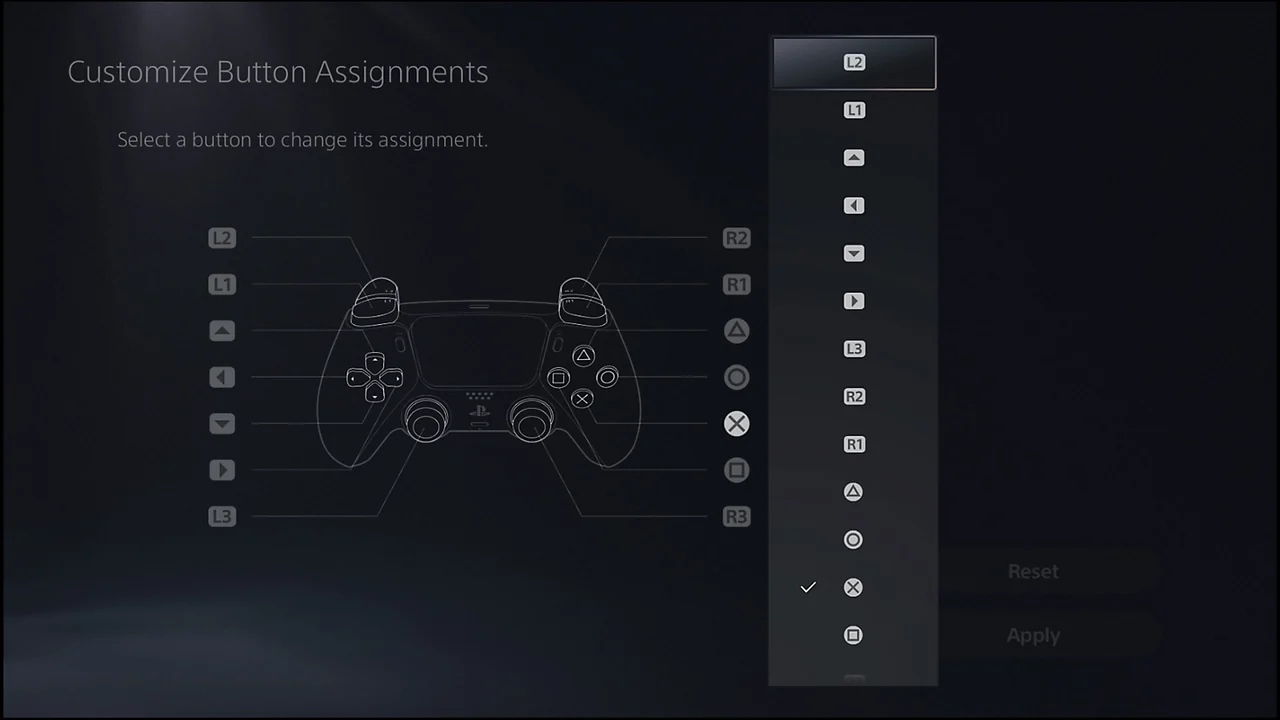
PS5 supports custom DualSense button assignments through the accessibility controller menu. For feedback strength, open Settings > Accessories > Controller (General). Here Sony documents vibration and trigger-effect intensity; DualSense Edge can manage these through its profiles. See the controller settings guide.
First identify the action that causes trouble. If repeated presses are the issue, look for a game-specific hold or toggle alternative. If reaching a button is the issue, try a remap. Write down the old assignment before changing it, then test menu navigation as well as gameplay. A comfortable combat layout may still make another frequent action awkward.
Do not feel obliged to retain strong haptics or trigger resistance because a game promotes them. Choose settings that let you play comfortably and consistently. For image motion and display behavior, our graphics-settings guide covers a separate set of adjustments.
Let a second controller help
The assistance feature lets two compatible controllers act as one. Enable Use Second Controller for Assistance under Accessibility > Controllers, then assign both controllers to the same user. A DualSense Edge can be the main controller but not the assist controller. Sony lists further compatibility limits in its assistance setup guide.
This is useful when one person handles movement while another helps with a particular action. Agree on the division first so simultaneous inputs do not become confusing. It does not create a separate player or add a co-op mode; see our local multiplayer guide when you want independent characters.
Check a game's actual accessibility features
On supported PS5 Store game hubs, the accessibility panel describes features supplied by the developer. Sony's accessibility-tags explanation covers controls, visuals, audio, captions, gameplay, and communication; PS4 and PS5 editions can be compared separately.
Use tags to build a shortlist, then investigate any essential requirement in the publisher's documentation. A label is a useful starting point, but your particular combination of language, interface, and control needs deserves a closer check. On a handheld, text size and viewing distance change again; our Portal guide explains the two play modes before you evaluate that setup.
Sources
Official documentation and publisher information checked on 26 October 2026. Availability and features can vary by country, game, and system version.