
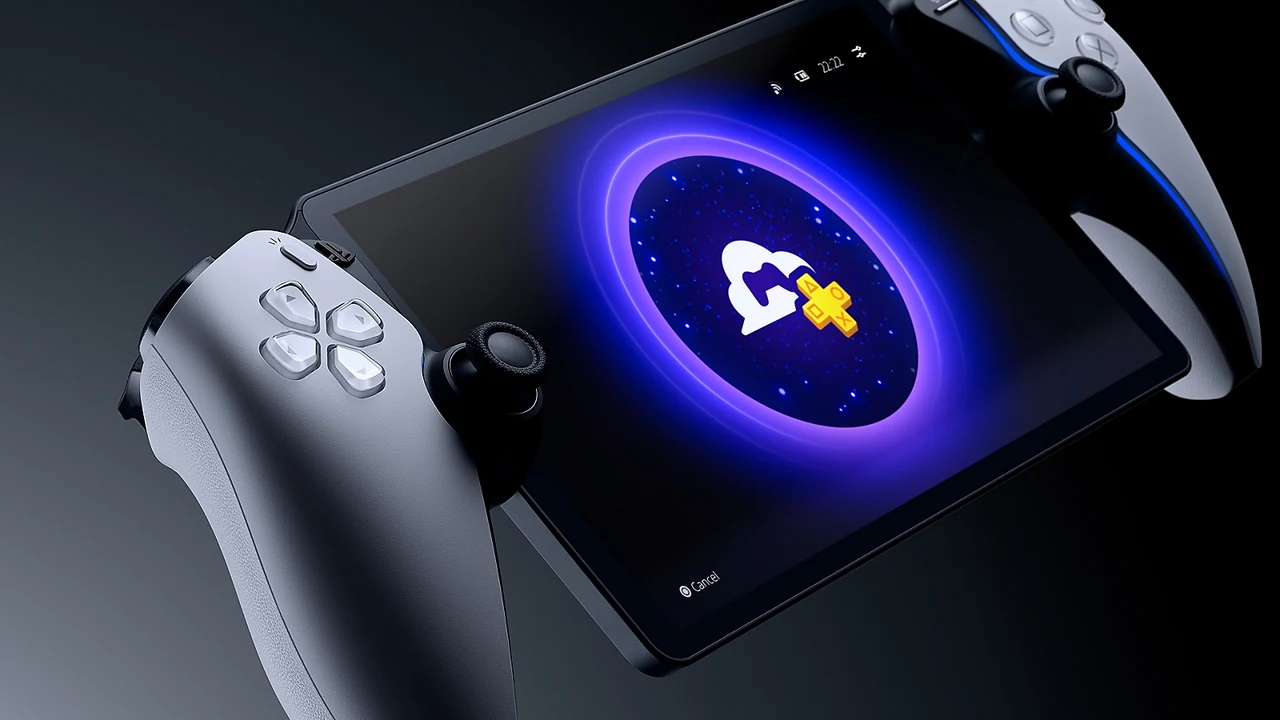
PlayStation Portal is easiest to understand as a screen and controls for a game running elsewhere. Remote Play connects to your own PS5. Cloud streaming connects to Sony's supported streaming service. Neither mode turns Portal into an offline handheld that installs and runs PS5 games locally.
Remote Play and cloud streaming compared
| Question | Remote Play | Cloud streaming |
|---|---|---|
| Where does the game run? | Your PS5 | A remote cloud server |
| Must your PS5 be available? | Yes, on or correctly configured in rest mode | No |
| Is Premium required? | No, although a game's online multiplayer may require PS Plus | Yes |
| Which library? | Compatible PS5 and PS4 games installed on your console | Eligible PS5 titles, including supported digital purchases |
Sony describes both modes on the Portal product page. Its advertised display capability is up to 1080p at 60 fps; that does not promise every game will render at 60 fps or every network will deliver an uninterrupted stream. VR games and games requiring unsupported extra peripherals are outside the ordinary Remote Play use case.
Check cloud eligibility before paying
Cloud use requires an active PlayStation Plus Premium membership and an eligible adult account; child accounts are excluded. Only supported PS5 games can stream this way on Portal, including eligible digital games in Your Library. PS4 and PS3 games are not supported in this mode, and ownership alone does not make a title eligible. Sony lists the requirements on its Portal cloud-support page.
The United States and United Kingdom are supported, alongside numerous European countries including France, Germany, Italy, Spain, and Poland. Europe is not a single availability region. Check the live country list, including its exclusion of overseas territories, before buying for use in a particular location. Availability and eligible titles can change.
Make a shortlist of five games you actually want to play and check their streaming eligibility. If only one qualifies, a large general catalog is less relevant to your decision. Our PS Plus comparison helps you judge Premium against the benefits you would use without Portal.
Prepare Remote Play at home first
On the PS5, enable Remote Play under Settings, System, Remote Play for the intended user. Sign in with the same account on Portal. To wake the PS5 from rest mode, enable its internet connection and network wake settings under System, Power Saving, Features Available in Rest Mode. Follow Sony's setup guide.
Test this before leaving home: connect, open a game, finish the session, put the PS5 in rest mode, and reconnect. A successful session while sitting beside an already running console does not test the whole travel workflow. Keep game updates and any required discs in mind before the console becomes physically inaccessible.
Speed matters, but consistency matters too
For Remote Play, Sony recommends a wired PS5 connection, 5 GHz Wi-Fi for Portal, and at least 15 Mbps for a better experience. Public Wi-Fi can be outside your control. For cloud streaming, the published minimums are 5 Mbps to establish a session, 7 Mbps for 720p, and 13 Mbps for 1080p, for upload and download. These thresholds are requirements, not a guarantee of responsiveness.
To diagnose a poor session, change one condition at a time:
- Try near the router, then in the room where you normally play.
- Pause large downloads and compare the same game scene again.
- Use a wired connection for the PS5 when testing Remote Play.
- Compare home Wi-Fi with the problematic network before blaming the game.
Sony's Portal troubleshooting guide recommends checking service status, connection stability, software updates, and nearby wireless interference. It also notes that PS5 custom button assignments are not applied during Portal Remote Play. Readers relying on remapping should check this alongside our accessibility guide before choosing their setup.
Pick the mode that solves your actual problem
For freeing the family television while continuing an installed game, begin with Remote Play. For playing eligible titles while your PS5 is unavailable, evaluate cloud access and country support. For trains, flights, or accommodation without dependable connectivity, plan an alternative activity instead of assuming a strong connection will exist.
Before alternating devices or modes, confirm that the expected progress appears in-game. Use our save verification and backup guide if anything looks wrong. Stop before overwriting unfamiliar progress; solving the connection is only useful if you are continuing the right save.
Sources
Official documentation and publisher information checked on 26 October 2026. Availability and features can vary by country, game, and system version.