Start with a game's performance mode if responsive controls matter most, or try its quality mode if you prefer extra visual detail. Then check which options your screen can display. There is no console switch that makes every PS5 game run at 120 FPS, and HDR does not increase frame rate.
Frame rate and refresh rate measure different things
Frames per second, or FPS, describes how frequently the game produces a new image. Hertz, or Hz, describes how frequently the display refreshes. A 120 Hz output signal can carry a game running at 30, 40, 60, or 120 FPS. The television's information panel may report the signal rather than the number of unique game frames.
| Game rate | Time per frame | Practical use |
|---|---|---|
| 30 FPS | 33.3 milliseconds | Often used by modes prioritizing visual detail |
| 40 FPS | 25 milliseconds | A possible compromise when a game supplies a suitable mode |
| 60 FPS | 16.7 milliseconds | A common target for more responsive action |
| 120 FPS | 8.3 milliseconds | Useful for fast motion when the game and screen support it |
These intervals are calculated as 1,000 divided by FPS. They are not measurements of total input latency: controller processing, game simulation, buffering, and the screen also contribute. A stable target can feel more consistent than a higher number that fluctuates heavily.
Why a 40 FPS mode usually asks for a 120 Hz screen
At 120 Hz, each frame in a steady 40 FPS presentation can occupy exactly three refreshes. On a fixed 60 Hz display, 40 does not divide evenly into the available refreshes. That is why a game may expose its 40 FPS option only when a compatible 120 Hz output is active.
Forty FPS sits halfway between 30 and 60 in frame time: 25 milliseconds is midway between 33.3 and 16.7. It can therefore be a worthwhile middle option, but only when the developer provides it. Enabling 120 Hz at the console does not manufacture a 40 FPS mode for a game that lacks one.
Read the graphics-mode description
Quality, fidelity, balanced, and performance are developer labels rather than universal specifications. Two games can use the same label for different targets. A mode may trade resolution, reflections, ray tracing, crowd density, or other effects for faster rendering. Check the game's current description and patch notes before borrowing settings from a different title.
Image reconstruction is another part of that decision. A sharp 4K output does not prove native 4K rendering, and an upscaling option does not promise 60 FPS. Read our QSSR and PSSR explainer if those labels appear in your game's menu.
What VRR helps with
Variable Refresh Rate synchronizes a compatible display's refresh timing with the console's output. Sony describes its benefits in terms of reducing tearing and frame-pacing artifacts on supported HDMI 2.1 VRR displays. It does not remove the underlying rendering workload or make every performance drop disappear. Sony's VRR explanation.
Implementation matters. Insomniac describes combinations of VRR and 120 Hz display mode that allow uncapped performance in its supported PS5 games. That is a developer-specific example, not a rule for every game. Insomniac's VRR guidance.
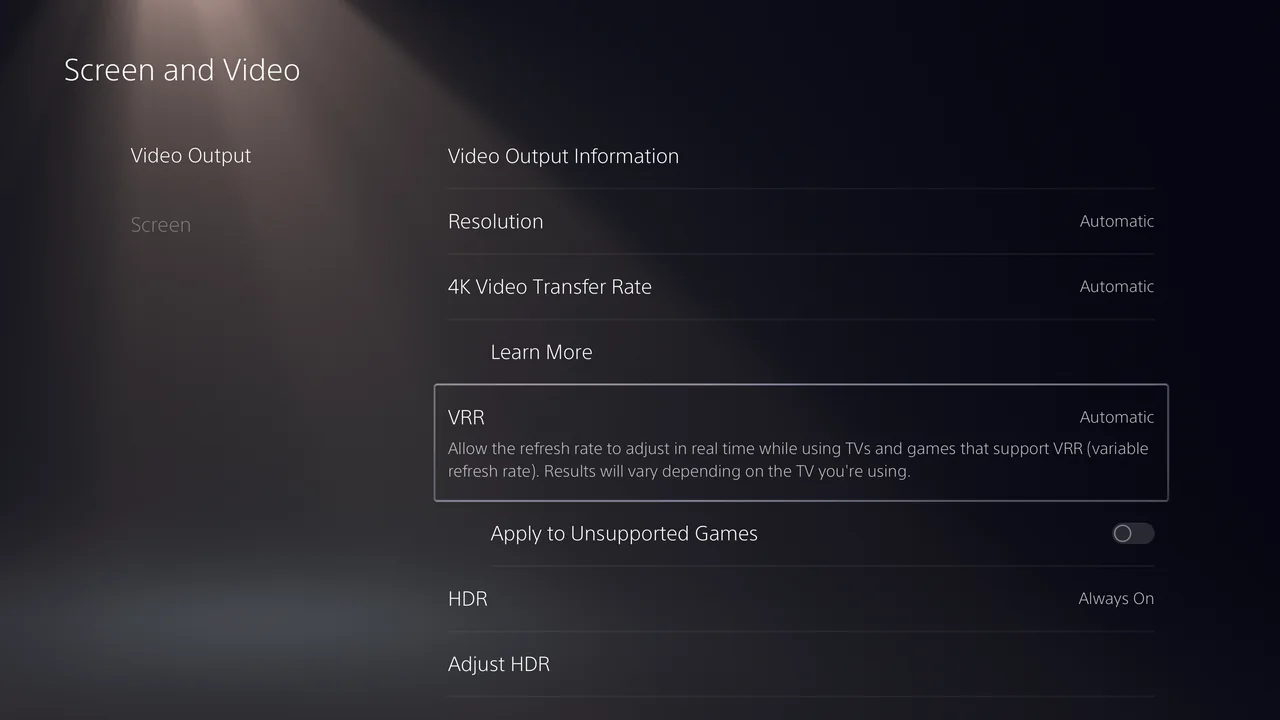
Under Settings → Screen and Video → Video Output, inspect the connected HDMI device information and enable supported output options. Sony also offers an option to apply VRR to unsupported games; switch that experiment off if it introduces unexpected behavior. Current PS5 video settings.
Set up HDR separately
HDR concerns brightness and color range. For a predictable baseline, choose On When Supported, which leaves non-HDR games in SDR, and run Adjust HDR under Video Output. Follow the calibration prompts with the display in the picture mode you intend to use. Sony's HDR setup guide.
Do not copy another owner's calibration clicks without checking the exact display and its settings. A useful comparison is whether bright detail remains visible and dark areas remain readable in your room. If your game has separate HDR controls, inspect those too. Avoid changing console calibration, television tone mapping, and game brightness simultaneously: you will not know which adjustment helped.
A practical troubleshooting order
- Check the connection. Use the console's supplied HDMI cable or a suitable replacement, and the display input that supports the desired signal. Consult the screen manual for input-specific enhanced-mode settings.
- Simplify the path. If a receiver, switch, or capture device is involved, test a direct console-to-screen connection to isolate compatibility problems.
- Confirm game support. Update the game and select its appropriate mode. Do not diagnose a missing 120 FPS option from the console menu alone.
- Change one feature. If flicker or blackouts occur, compare with VRR or 120 Hz disabled individually. Restore a stable baseline before experimenting again.
- Record what works. Save the console, screen, input, game, and mode details so a later patch can be compared fairly.
Sony's 4K troubleshooting guide provides additional signal checks. If the difficulty is reading prompts, tracking action, or using the controls, also review the accessibility settings guide; those needs may be better addressed directly than by changing graphics quality.
Sources
Official documentation and publisher information checked on 26 October 2026. Availability and features can vary by country, game, and system version.