
A strong gaming screenshot begins with a moment you want to preserve, but it also needs a reliable path off the console. Separate composition, capture, and storage. That makes it easier to discover whether a missing picture was never saved, never uploaded, or simply no longer available in the phone app.
Use the PS5 Create controls
Sony's capture guide explains the Create button's screenshot and video options, including saving recent gameplay. Capture settings and button shortcuts are available under Settings, Captures and Broadcasts. Some scenes may block recording, so a missing capture in a restricted sequence is not necessarily a controller fault.
Test the chosen shortcut with an ordinary scene before relying on it for a moment you cannot easily repeat. Open the saved result and confirm that it contains what you expected. A quick check can reveal a menu overlay, an incorrect shortcut, or a format choice you would otherwise discover only after a long session.
Separate Photo Mode from saving the image
An in-game Photo Mode is a composition tool whose options depend on the game. The console's capture system records the result. Enter the game's mode, arrange the image, hide its interface where supported, and then use your chosen capture control.
Start with the subject. Decide whether the image is about a character, a vehicle, an environment, or an action. Adjust the camera so that the important shape remains clear. A dramatic background is less useful if it makes the subject difficult to identify at the size you intend to share.
Try a clean version before adding heavy filters or blur. You can compare two compositions more easily when the effect does not conceal the difference. For a square thumbnail, leave enough room around the subject to allow a crop without cutting off the detail that explains the image.
Enable captures in PlayStation App
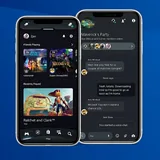
The official app-capture instructions require a linked PS5 and the appropriate internet-connected rest-mode setup. In the app, open Library, then Captures, and enable the feature. The console also provides Auto-Upload under its capture settings and a manual Upload to PlayStation App option in Media Gallery.
Sony currently specifies supported screenshots and short, non-4K video clips. Its FAQ limits uploaded video to 1920×1080 and three minutes. If an important clip is longer or higher resolution, do not repeatedly wait for an upload that falls outside those conditions.
Keep a lasting copy
App captures remain available for fourteen days after creation, and trophy or activity auto-captures are not included in the same upload behavior. Use Download in the app to save a favorite to your device. PS Plus is not required for this capture feature.
Treat that window as a transfer opportunity, not an archive. Give important images meaningful filenames or place them in an album you can find later. Before clearing console media, open the downloaded file and check that it is complete and usable. The existence of a small preview alone is not a useful backup check.
Review the final image before sharing
Look at the picture at the size another person will see. Check whether text remains readable, whether the main subject is clear, and whether a crop removes essential context. If the image reveals a major story moment, choose a different thumbnail or mark the post appropriately.
For recorded clips, check the audio as well as the image. Avoid sharing a private conversation accidentally. If setup is still unclear, our PlayStation App guide explains pairing and account checks before you troubleshoot individual captures.
Sources
Official documentation and publisher information checked on 26 October 2026. Availability and features can vary by country, game, and system version.